
《文本朗诵》(Textaloud)v2.0
电驴资源
| 用户共享的电驴资源列表 | |
|---|---|
| [文本朗诵].nextup.textaloud.exe | 2.39 MB |
| [文本朗诵].keygen.exe | 11.92 KB |
| [文本朗诵].Nextup.Text-To-Speech.At&T.Natural.Voices.1.4.rar | 542.08 MB |
| [文本朗诵].Textaloud.Sample.rar | 274.48 KB |
| [文本朗诵].NextUp.Text-to-Speech.AT&T.Natural.Voices.1.4.[Disk.2.of.2].iso | 540.78 MB |
| 1.06 GB | |
电驴资源简介
中文名: 文本朗诵英文名: Textaloud版本: v2.0发行时间: 2004年制作发行: NextUp地区: 美国简介:
[通过安全测试]
杀毒软件:卡巴斯基反病毒
版本: Personal Pro 5.0.227
病毒库:2005-10-5 13:24:15
常驻:Razorback 2.0
共享条件:电信ADSL 1M带宽,上载理论64K,平均50K。
共享时间:12:00 -24:00
共享服务器:一般在Razorback 2.0[/COLOR]
说明:
最强大的文字变语音软件,在微软TTS系统基础上开发,可以把任何英语文本(包括多种其他语言,目前不支持中文)转化维标注的语音.学英语的朋友有福了,你可以把任何想阅读的文章放到里面,一边阅读,一边听标准的美国口音或英国口音朗诵. 值得一提的是你还可以把它作为一个电子书的阅读软件,任意设置文字颜色及大小字体,背景颜色,可以让它自动卷屏,可以按行按段也可以按页 若你想把整篇文章,甚至整部英文原版书籍转换维语音以后慢慢欣赏,没问题 只需要把文本导入,选好目标文件夹,分分钟即可完成 当然把想阅读的文章导入在阅读总是有点麻烦,若想朗读网页或其他文件夹丽的文本只需要设定一下快捷键,然后选定想要阅读的段落活片张,点快捷键,可以欣赏了
若你怀疑它的效果,可以先下我自己录制的样本(sample).本人是英语专业,我听起来它的效果已经蛮好了, 你自己试试吧
听完了吗?还可以吧 一下是安装方法:
先运行安装程序安装.安装成功之后打开会要求输入注册码,运行算号器算号,填入,继续,注册成功 可以使用了 不过这时的语音听起来有点生硬,安装[文本朗诵].Nextup.Text-To-Speech.At T.Natural.Voices.1.4.rar. 这里带有自然语音引擎和一个叫crystal的女声,就是最好的的效果了 若想增加其他的声音,可一在emule 里搜索Nextup.Text-To-Speech.At T.Natural.Voices.1.4.rar cd2.(我还没下完,下完后补上).
一下是官方网站对2.0的介绍:
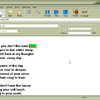
New Look
TextAloud 2.0 has a new look. The biggest difference is shown in Multi-Article Mode. Only a single article is shown at a time, and the a dropdown list that shows titles of all articles and allows article switching is at the top of the window. This makes the interface cleaner, and also corrects TextAloud 1.x problem that limitted max number of articles to 20-40. Number of articles should be virtually unlimitted.
There are also new toolbar options to allow you to change the size of the toolbar icons and choose whether you want the toolbar to have captions or not.
TextAloud 2.0 supports skins. Skins allow you to easily change the color scheme and look of the TextAloud window. Do View- Skins on the main menu. The download has 5 skins included, with links to download more.
Advanced Article Font Controls
Via Options- Article Font and Colors, you can now not only control font size, but font and window colors of both normal text and highlighted text.
Voice/Pitch Change on main window
You?ll notice that on the main window of TextAloud 2.0, there is now a speed control slider visible (as well as pitch slider on voices that support it). This allows you to make adjustments to the currently selected voice even while speaking is underway.
These adjustments are also available on the Edit menu with shortcut keys.
Options/Preferences moved to Options Menu
TextAloud 1.X had several options displayed on the main menu, including the familiar Clipboard, Voices/Engines, File Options, and Misc. Options TABs on the TextAloud main window. This was ugly, and caused sight-impaired users a great deal of trouble. All of these settings have been moved off to Options- TextAloud Options, and Options, Voice and File Options.
Support for opening more file types
TextAloud 1.x would only open .txt files from File- Open. TextAloud 2.0 can now directly open text files (.txt), Rich Text Files (.rtf), Microsoft Word Files (.doc), local HTML Files, and local PDF Files (.pdf).
Batch File Conversion
Available under File- Batch File Converter, this utility makes it simple to convert a large number of files containing text to audio files.
Support for voice changes within a single article
When you set TextAloud to use SAPI5 Only under Voice and File Options, you are now able to change voices within a single text article. The right-click menu contains a new entry, Insert Voice Change.
Proofreading Hotkey
To make proofreading documents and emails easier, we?ve created a new hotkey for proofreading. This can be set under Options- Hotkey Setup. Once created, you can be working in another program (for example an email you are composing or a document you are writing), you highlight a paragraph or two of text that you want to listen to, and then hit your proofread hotkey combination. A window will open, showing the text highlighted as it is spoken. You can adjust the voice as desired on this window. If you notice a mistake as the text is spoken, simply click anywhere on this window and speaking stops and the window closes, returning you to your document to make the correction. This offers a quicker, simpler way of proofreading without having to interact with TextAlouds main window.
Bookmarks
We?ve added bookmark functionality on the Edit menu, allowing you to set bookmarks within articles, and move to them with menu entries.
Internet Explorer Plugin
We?ve created a plugin for Internet Explorer, to allow easier use of text from web pages. After installing TextAloud 2.0, you may need to reboot before this will be available. Within internet explorer, choose View- Toolbars- TextAloud for IE. This will cause a new toolbar to be displayed on the IE toolbar. You may need to drag this toolbar or resize it to get all the items to display. The toolbar contains 5 elements
Speaker Icon ? speaks text selected within IE, or all text on a page if no text is highlighted
Stop ? Stops current speaking
Copy ? Copies text that is selected in IE as a new article into TextAloud for use within TextAloud.
Options ? opens options related to the IE plugin
Voice Selection ? Allows you to select voice for use when speaking from Internet Explorer
Ability to change sample rate on output WAVE Files
We get this request a lot. TextAloud 2.0 will allow you to specify the sample rate of TextAloud created wave files, IF you set TextAloud to use SAPI5 Only on the Voice Options TAB.
Minor Changes and Features
We?ve changed ?Read? to ?Speak? on all of the menus and buttons to clear up some confusion.
Added File- Save Article As to allow you to save an article out as a .txt file.
Cut, Copy, Paste, and Select All are now available on the Edit menu as well as the right-click menu.
Undo/Redo available on the Edit menu.
Search and Search/Replace available on the edit menu.
On Options- TextAloud Options- Predefined Pauses, you can now specify longer pauses to be used between sentences and paragraphs if desired.
New option on Misc. Options to choose whether you want TextAloud to run in system tray, or to simply close when you click ?X?.
On the voice edit under Options- Voice and File Options, when you select a voice to edit, there is now a volume slider to adjust volume on a given voice.
TextAloud now writes info into the MP3 ID3 Tags.
New Look
TextAloud 2.0 has a new look. The biggest difference is shown in Multi-Article Mode. Only a single article is shown at a time, and the a dropdown list that shows titles of all articles and allows article switching is at the top of the window. This makes the interface cleaner, and also corrects TextAloud 1.x problem that limitted max number of articles to 20-40. Number of articles should be virtually unlimitted.
There are also new toolbar options to allow you to change the size of the toolbar icons and choose whether you want the toolbar to have captions or not.
TextAloud 2.0 supports skins. Skins allow you to easily change the color scheme and look of the TextAloud window. Do View- Skins on the main menu. The download has 5 skins included, with links to download more.
Advanced Article Font Controls
Via Options- Article Font and Colors, you can now not only control font size, but font and window colors of both normal text and highlighted text.
Voice/Pitch Change on main window
You?ll notice that on the main window of TextAloud 2.0, there is now a speed control slider visible (as well as pitch slider on voices that support it). This allows you to make adjustments to the currently selected voice even while speaking is underway.
These adjustments are also available on the Edit menu with shortcut keys.
Options/Preferences moved to Options Menu
TextAloud 1.X had several options displayed on the main menu, including the familiar Clipboard, Voices/Engines, File Options, and Misc. Options TABs on the TextAloud main window. This was ugly, and caused sight-impaired users a great deal of trouble. All of these settings have been moved off to Options- TextAloud Options, and Options, Voice and File Options.
Support for opening more file types
TextAloud 1.x would only open .txt files from File- Open. TextAloud 2.0 can now directly open text files (.txt), Rich Text Files (.rtf), Microsoft Word Files (.doc), local HTML Files, and local PDF Files (.pdf).
Batch File Conversion
Available under File- Batch File Converter, this utility makes it simple to convert a large number of files containing text to audio files.
Support for voice changes within a single article
When you set TextAloud to use SAPI5 Only under Voice and File Options, you are now able to change voices within a single text article. The right-click menu contains a new entry, Insert Voice Change.
Proofreading Hotkey
To make proofreading documents and emails easier, we?ve created a new hotkey for proofreading. This can be set under Options- Hotkey Setup. Once created, you can be working in another program (for example an email you are composing or a document you are writing), you highlight a paragraph or two of text that you want to listen to, and then hit your proofread hotkey combination. A window will open, showing the text highlighted as it is spoken. You can adjust the voice as desired on this window. If you notice a mistake as the text is spoken, simply click anywhere on this window and speaking stops and the window closes, returning you to your document to make the correction. This offers a quicker, simpler way of proofreading without having to interact with TextAlouds main window.
Bookmarks
We?ve added bookmark functionality on the Edit menu, allowing you to set bookmarks within articles, and move to them with menu entries.
Internet Explorer Plugin
We?ve created a plugin for Internet Explorer, to allow easier use of text from web pages. After installing TextAloud 2.0, you may need to reboot before this will be available. Within internet explorer, choose View- Toolbars- TextAloud for IE. This will cause a new toolbar to be displayed on the IE toolbar. You may need to drag this toolbar or resize it to get all the items to display. The toolbar contains 5 elements
Speaker Icon ? speaks text selected within IE, or all text on a page if no text is highlighted
Stop ? Stops current speaking
Copy ? Copies text that is selected in IE as a new article into TextAloud for use within TextAloud.
Options ? opens options related to the IE plugin
Voice Selection ? Allows you to select voice for use when speaking from Internet Explorer
Ability to change sample rate on output WAVE Files
We get this request a lot. TextAloud 2.0 will allow you to specify the sample rate of TextAloud created wave files, IF you set TextAloud to use SAPI5 Only on the Voice Options TAB.
Minor Changes and Features
We?ve changed ?Read? to ?Speak? on all of the menus and buttons to clear up some confusion.
Added File- Save Article As to allow you to save an article out as a .txt file.
Cut, Copy, Paste, and Select All are now available on the Edit menu as well as the right-click menu.
Undo/Redo available on the Edit menu.
Search and Search/Replace available on the edit menu.
On Options- TextAloud Options- Predefined Pauses, you can now specify longer pauses to be used between sentences and paragraphs if desired.
New option on Misc. Options to choose whether you want TextAloud to run in system tray, or to simply close when you click ?X?.
On the voice edit under Options- Voice and File Options, when you select a voice to edit, there is now a volume slider to adjust volume on a given voice.
TextAloud now writes info into the MP3 ID3 Tags.
[通过安全测试]
杀毒软件:卡巴斯基反病毒
版本: Personal Pro 5.0.227
病毒库:2005-10-5 13:24:15
常驻:Razorback 2.0
共享条件:电信ADSL 1M带宽,上载理论64K,平均50K。
共享时间:12:00 -24:00
共享服务器:一般在Razorback 2.0[/COLOR]
说明:
最强大的文字变语音软件,在微软TTS系统基础上开发,可以把任何英语文本(包括多种其他语言,目前不支持中文)转化维标注的语音.学英语的朋友有福了,你可以把任何想阅读的文章放到里面,一边阅读,一边听标准的美国口音或英国口音朗诵. 值得一提的是你还可以把它作为一个电子书的阅读软件,任意设置文字颜色及大小字体,背景颜色,可以让它自动卷屏,可以按行按段也可以按页 若你想把整篇文章,甚至整部英文原版书籍转换维语音以后慢慢欣赏,没问题 只需要把文本导入,选好目标文件夹,分分钟即可完成 当然把想阅读的文章导入在阅读总是有点麻烦,若想朗读网页或其他文件夹丽的文本只需要设定一下快捷键,然后选定想要阅读的段落活片张,点快捷键,可以欣赏了
若你怀疑它的效果,可以先下我自己录制的样本(sample).本人是英语专业,我听起来它的效果已经蛮好了, 你自己试试吧
听完了吗?还可以吧 一下是安装方法:
先运行安装程序安装.安装成功之后打开会要求输入注册码,运行算号器算号,填入,继续,注册成功 可以使用了 不过这时的语音听起来有点生硬,安装[文本朗诵].Nextup.Text-To-Speech.At T.Natural.Voices.1.4.rar. 这里带有自然语音引擎和一个叫crystal的女声,就是最好的的效果了 若想增加其他的声音,可一在emule 里搜索Nextup.Text-To-Speech.At T.Natural.Voices.1.4.rar cd2.(我还没下完,下完后补上).
一下是官方网站对2.0的介绍:
New Look
TextAloud 2.0 has a new look. The biggest difference is shown in Multi-Article Mode. Only a single article is shown at a time, and the a dropdown list that shows titles of all articles and allows article switching is at the top of the window. This makes the interface cleaner, and also corrects TextAloud 1.x problem that limitted max number of articles to 20-40. Number of articles should be virtually unlimitted.
There are also new toolbar options to allow you to change the size of the toolbar icons and choose whether you want the toolbar to have captions or not.
TextAloud 2.0 supports skins. Skins allow you to easily change the color scheme and look of the TextAloud window. Do View- Skins on the main menu. The download has 5 skins included, with links to download more.
Advanced Article Font Controls
Via Options- Article Font and Colors, you can now not only control font size, but font and window colors of both normal text and highlighted text.
Voice/Pitch Change on main window
You?ll notice that on the main window of TextAloud 2.0, there is now a speed control slider visible (as well as pitch slider on voices that support it). This allows you to make adjustments to the currently selected voice even while speaking is underway.
These adjustments are also available on the Edit menu with shortcut keys.
Options/Preferences moved to Options Menu
TextAloud 1.X had several options displayed on the main menu, including the familiar Clipboard, Voices/Engines, File Options, and Misc. Options TABs on the TextAloud main window. This was ugly, and caused sight-impaired users a great deal of trouble. All of these settings have been moved off to Options- TextAloud Options, and Options, Voice and File Options.
Support for opening more file types
TextAloud 1.x would only open .txt files from File- Open. TextAloud 2.0 can now directly open text files (.txt), Rich Text Files (.rtf), Microsoft Word Files (.doc), local HTML Files, and local PDF Files (.pdf).
Batch File Conversion
Available under File- Batch File Converter, this utility makes it simple to convert a large number of files containing text to audio files.
Support for voice changes within a single article
When you set TextAloud to use SAPI5 Only under Voice and File Options, you are now able to change voices within a single text article. The right-click menu contains a new entry, Insert Voice Change.
Proofreading Hotkey
To make proofreading documents and emails easier, we?ve created a new hotkey for proofreading. This can be set under Options- Hotkey Setup. Once created, you can be working in another program (for example an email you are composing or a document you are writing), you highlight a paragraph or two of text that you want to listen to, and then hit your proofread hotkey combination. A window will open, showing the text highlighted as it is spoken. You can adjust the voice as desired on this window. If you notice a mistake as the text is spoken, simply click anywhere on this window and speaking stops and the window closes, returning you to your document to make the correction. This offers a quicker, simpler way of proofreading without having to interact with TextAlouds main window.
Bookmarks
We?ve added bookmark functionality on the Edit menu, allowing you to set bookmarks within articles, and move to them with menu entries.
Internet Explorer Plugin
We?ve created a plugin for Internet Explorer, to allow easier use of text from web pages. After installing TextAloud 2.0, you may need to reboot before this will be available. Within internet explorer, choose View- Toolbars- TextAloud for IE. This will cause a new toolbar to be displayed on the IE toolbar. You may need to drag this toolbar or resize it to get all the items to display. The toolbar contains 5 elements
Speaker Icon ? speaks text selected within IE, or all text on a page if no text is highlighted
Stop ? Stops current speaking
Copy ? Copies text that is selected in IE as a new article into TextAloud for use within TextAloud.
Options ? opens options related to the IE plugin
Voice Selection ? Allows you to select voice for use when speaking from Internet Explorer
Ability to change sample rate on output WAVE Files
We get this request a lot. TextAloud 2.0 will allow you to specify the sample rate of TextAloud created wave files, IF you set TextAloud to use SAPI5 Only on the Voice Options TAB.
Minor Changes and Features
We?ve changed ?Read? to ?Speak? on all of the menus and buttons to clear up some confusion.
Added File- Save Article As to allow you to save an article out as a .txt file.
Cut, Copy, Paste, and Select All are now available on the Edit menu as well as the right-click menu.
Undo/Redo available on the Edit menu.
Search and Search/Replace available on the edit menu.
On Options- TextAloud Options- Predefined Pauses, you can now specify longer pauses to be used between sentences and paragraphs if desired.
New option on Misc. Options to choose whether you want TextAloud to run in system tray, or to simply close when you click ?X?.
On the voice edit under Options- Voice and File Options, when you select a voice to edit, there is now a volume slider to adjust volume on a given voice.
TextAloud now writes info into the MP3 ID3 Tags.
New Look
TextAloud 2.0 has a new look. The biggest difference is shown in Multi-Article Mode. Only a single article is shown at a time, and the a dropdown list that shows titles of all articles and allows article switching is at the top of the window. This makes the interface cleaner, and also corrects TextAloud 1.x problem that limitted max number of articles to 20-40. Number of articles should be virtually unlimitted.
There are also new toolbar options to allow you to change the size of the toolbar icons and choose whether you want the toolbar to have captions or not.
TextAloud 2.0 supports skins. Skins allow you to easily change the color scheme and look of the TextAloud window. Do View- Skins on the main menu. The download has 5 skins included, with links to download more.
Advanced Article Font Controls
Via Options- Article Font and Colors, you can now not only control font size, but font and window colors of both normal text and highlighted text.
Voice/Pitch Change on main window
You?ll notice that on the main window of TextAloud 2.0, there is now a speed control slider visible (as well as pitch slider on voices that support it). This allows you to make adjustments to the currently selected voice even while speaking is underway.
These adjustments are also available on the Edit menu with shortcut keys.
Options/Preferences moved to Options Menu
TextAloud 1.X had several options displayed on the main menu, including the familiar Clipboard, Voices/Engines, File Options, and Misc. Options TABs on the TextAloud main window. This was ugly, and caused sight-impaired users a great deal of trouble. All of these settings have been moved off to Options- TextAloud Options, and Options, Voice and File Options.
Support for opening more file types
TextAloud 1.x would only open .txt files from File- Open. TextAloud 2.0 can now directly open text files (.txt), Rich Text Files (.rtf), Microsoft Word Files (.doc), local HTML Files, and local PDF Files (.pdf).
Batch File Conversion
Available under File- Batch File Converter, this utility makes it simple to convert a large number of files containing text to audio files.
Support for voice changes within a single article
When you set TextAloud to use SAPI5 Only under Voice and File Options, you are now able to change voices within a single text article. The right-click menu contains a new entry, Insert Voice Change.
Proofreading Hotkey
To make proofreading documents and emails easier, we?ve created a new hotkey for proofreading. This can be set under Options- Hotkey Setup. Once created, you can be working in another program (for example an email you are composing or a document you are writing), you highlight a paragraph or two of text that you want to listen to, and then hit your proofread hotkey combination. A window will open, showing the text highlighted as it is spoken. You can adjust the voice as desired on this window. If you notice a mistake as the text is spoken, simply click anywhere on this window and speaking stops and the window closes, returning you to your document to make the correction. This offers a quicker, simpler way of proofreading without having to interact with TextAlouds main window.
Bookmarks
We?ve added bookmark functionality on the Edit menu, allowing you to set bookmarks within articles, and move to them with menu entries.
Internet Explorer Plugin
We?ve created a plugin for Internet Explorer, to allow easier use of text from web pages. After installing TextAloud 2.0, you may need to reboot before this will be available. Within internet explorer, choose View- Toolbars- TextAloud for IE. This will cause a new toolbar to be displayed on the IE toolbar. You may need to drag this toolbar or resize it to get all the items to display. The toolbar contains 5 elements
Speaker Icon ? speaks text selected within IE, or all text on a page if no text is highlighted
Stop ? Stops current speaking
Copy ? Copies text that is selected in IE as a new article into TextAloud for use within TextAloud.
Options ? opens options related to the IE plugin
Voice Selection ? Allows you to select voice for use when speaking from Internet Explorer
Ability to change sample rate on output WAVE Files
We get this request a lot. TextAloud 2.0 will allow you to specify the sample rate of TextAloud created wave files, IF you set TextAloud to use SAPI5 Only on the Voice Options TAB.
Minor Changes and Features
We?ve changed ?Read? to ?Speak? on all of the menus and buttons to clear up some confusion.
Added File- Save Article As to allow you to save an article out as a .txt file.
Cut, Copy, Paste, and Select All are now available on the Edit menu as well as the right-click menu.
Undo/Redo available on the Edit menu.
Search and Search/Replace available on the edit menu.
On Options- TextAloud Options- Predefined Pauses, you can now specify longer pauses to be used between sentences and paragraphs if desired.
New option on Misc. Options to choose whether you want TextAloud to run in system tray, or to simply close when you click ?X?.
On the voice edit under Options- Voice and File Options, when you select a voice to edit, there is now a volume slider to adjust volume on a given voice.
TextAloud now writes info into the MP3 ID3 Tags.