
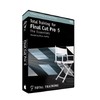
《Final.Cut.Pro.5 原版精品完整教程》(Total.Training.For.Final.Cut.Pro.5.The.Essentials)[ISO]
电驴资源
电驴资源简介
中文名: Final.Cut.Pro.5 原版精品完整教程英文名: Total.Training.For.Final.Cut.Pro.5.The.Essentials资源格式: 光盘镜像发行时间: 2006年地区: 美国对白语言: 英语简介:
FINAL CUT PRO 5 完整英文教程DVD-Rom (Win/Mac)
Total Training for Final Cut Pro 5: the Essentials DVD-Rom (Win/Mac)
本人24小时开机 上传速度为50 希望大家帮忙分流
价格 : 229.99
格式: DVD (ROM)
本教程由著名后期工程师Brian Maffitt 主讲
本资源官方网址 http://www.totaltraining.com/prod/apple/finalcutpro5_ess.asp
内容简介:
Learn the leading Mac-based video editing application during this video series produced in HD. It s easy to fine tune your skills by accessing the same video clips used by Brian in the lessons to give you hands on experience with the new techniques.
Visual effects guru, Brian Maffitt helps you get up to speed on the leading Mac-based video editing application during this video series produced in HD. It s easy to fine tune your skills by accessing the same video clips used by Brian in the lessons to give you hands on experience with the new techniques.
Highlights
Discover all the ins and outs of working with HDV, the exciting new video format that lets you create HD content on a DV budget.
Learn how to save time with real-time effects processing on everything from DV to fully uncompressed HD.
Uncover how to fix common audio problems with Final Cut Pro s built-in audio tools and effects.
Understand the right way to output your final edits as high-quality Web clips using Apple s amazing H.264 High Definition video codec.
Bonus Materials
Courtesy of Boris FX, a leading developer of integrated graphics and effects technology, you ll enjoy a free copy of the BCC Rays Textured filter. The BCC Rays Textured filter creates a textured light using a noise map pattern. The resulting light is generated from a chosen channel in the source image and spreads from a source point in all directions. The BCC Rays Textured filter is part of Boris Continuum Complete, a native filter set that lets you create effects directly in the native host interface of Apple® Final Cut Pro®, Apple® Motion®, Adobe® After Effects®, Adobe® Premiere Pro®, and more.
Presenter: Brian Maffitt
Brian Maffitt, Total Training s Chief Creative Officer, is also among the world s foremost experts in the field of Motion Graphics, and in particular Adobe After Effects. He is an award-winning animator, interactive designer, and software designer.
Brian designed the amazing Evolution plug-ins that became a permanent part of After Effects beginning with version 5.
Disc 1:
1. Getting Started (35 min)
Lesson 1: Launching a Final Cut Pro Project
Lesson 2: Arranging Your Workspace
Lesson 3: Introducing the Browser
Lesson 4: Introducing the Viewer
Lesson 5: Introducing the Timeline the Canvas
Lesson 6: Rendering Files
Lesson 7: Playing Back in Fullscreen View
2. The Basics of Editing (44 min)
Lesson 1: Creating a New Sequence
Lesson 2: Searching for Specific Clips Using the Find Dialog Box
Lesson 3: Customizing the Timeline
Lesson 4: Adding Clips to the Timeline Closing Gaps
Lesson 5: Assembling Clips with Snapping Turned On
Lesson 6: Very Basic Editing
Lesson 7: Trimming with the Blade Tool
Lesson 8: Using Add Edit to Blade Selected Clips
Lesson 9: Using In Out Points in the Viewer
Lesson 10: Three Point Editing Using the J, K L Keys
Lesson 11: Overwriting vs. Inserting Clips
Lesson 12: Editing by Using Primarily Keyboard Shortcuts
Lesson 13: Saving Your Project
3. Getting Around: the Browser Viewer (41 min)
Lesson 1: Moving Closing Tabs
Lesson 2: Customizing Keyboard Shortcuts Utilizing Tooltips
Lesson 3: Navigating the Browser Window
Lesson 4: Changing Browser View Settings Labeling Clips
Lesson 5: Viewing Thumbnails Changing the Poster Frame
Lesson 6: Exploring Viewer Window Display Options
Lesson 7: Viewing Channels Transparency
Lesson 8: Exploring Playhead Sync Options Generators
4. Getting Around: the Timeline (53 min)
Lesson 1: Customizing Your Timeline
Lesson 2: Navigating the Timeline
Lesson 3: Zooming Inside the Timeline
Lesson 4: Navigating Gaps
Lesson 5: Timeline Audio Video Controls
Lesson 6: Source Destination Controls
Lesson 7: Viewing Clip Keyframes Overlays
Lesson 8: Setting Navigating Markers in the Timeline
Lesson 9: Setting Editing Markers in a Clip
Lesson 10: Modifying Marker Durations
Lesson 11: Making Practical Use of Markers
Lesson 12: Navigating Deleting Markers
5. Editing With the Tools (61 min)
Lesson 1: Assembling Clips in the Timeline
Lesson 2: Selecting, Linking Stereo Pairs
Lesson 3: Reordering Clips with the Insert Edit Function
Lesson 4: Making Ripple Deletes Ripple Cuts
Lesson 5: Using the Roll Ripple Tools
Lesson 6: Slipping Sliding in the Timeline
Lesson 7: Making a Match Action Edit
Lesson 8: Keyframing Layering Audio Tracks
Lesson 9: Adjusting Audio Levels Adding Transitions
Lesson 10: Creating Rendering Audio Effects in Real Time
Lesson 11: Using the Track Selection Tools
6. Setting Up a New Project (34 min)
Lesson 1: Changing Your Easy Setup
Lesson 2: External A/V Devices HDV
Lesson 3: How Easy Setup Affects Your Project
Lesson 4: Working with Non-Standard Compressors
Lesson 5: Creating Your Own Easy Setup
Lesson 6: Creating an Easy Setup from Scratch
7. Using Transitions (52 min)
Lesson 1: Setting Your Scratch Disks
Lesson 2: Using the Real Time Options
Lesson 3: Introducing Transitions
Lesson 4: Applying Transitions
Lesson 5: Understanding the Render Color Codes
Lesson 6: Rendering Transitions
Lesson 7: Modifying Transitions
Lesson 8: Adjusting Pre-roll Post-roll Options
Lesson 9: Customizing Transition Parameters
Lesson 10: Creating a Page Peel
Lesson 11: Setting a Default Transition
Lesson 12: Selecting Multiple Transitions at Once
8. Setting Preferences (47 min)
Lesson 1: Introducing Preferences
Lesson 2: Setting Values for Levels of Undo Recent Clips
Lesson 3: Adjusting Audio Tracks, Quality Real Time Video
Lesson 4: Setting Autosave Vault Options
Lesson 5: Activating Warnings Dropped Frame Settings
Lesson 6: Setting the Auto Render Values
Lesson 7: Changing the Duration of a Still the Editing Prefs
Lesson 8: Turning On Dupe Detection
Lesson 9: Setting Labels Timeline Options
Lesson 10: Choosing Render Control Options
Lesson 11: Setting the Scratch Disks
Lesson 12: Setting Search Folders Memory Cache
Lesson 13: Adjusting More System Settings
Lesson 14: Backing Up Your Preferences
9. Logging Capturing Clips (40 min)
Lesson 1: Setting Up for Capture
Lesson 2: Introducing the Log and Capture Window
Lesson 3: Setting In Out Points Setting the Logging Bin
Lesson 4: Entering Clip Information
Lesson 5: Capturing Logged Clips
Lesson 6: Deleting Unwanted Clips
Lesson 7: Adjusting Log and Capture Clip Settings
Lesson 8: Capturing Footage Applying DV Start/Stop Detect
Lesson 9: Creating New Clips on Start/Stop Capturing HDV Footage
Lesson 10: Capturing Clips with Batch Lists
Lesson 11: Final Comments Credits
Disc 2
1. Storyboarding Trimming (40 min)
Lesson 1: Preparing for Storyboarding
Lesson 2: Storyboarding the Clips
Lesson 3: Adding Clips to the Timeline Opening the Trim Window
Lesson 4: Introducing the Trim Edit Window
Lesson 5: Rolling Rippling within the Trim Edit Window
Lesson 6: Finding the Best Point to Make a Cut
Lesson 7: Trimming Using the Mouse the J, K, L Keys
Lesson 8: Dynamic Trimming Using the J, K, L Keys
Lesson 9: Understanding In Shift Out Shift
2. Working with Graphics (74 min)
Lesson 1: Working with Adobe Illustrator Files in FCP
Lesson 2: Importing an Illustrator File into Adobe Photoshop for use in FCP
Lesson 3: Sizing Graphics to Import into an HDV Timeline
Lesson 4: Resizing Images in Final Cut Pro
Lesson 5: Importing PSD Files as an Image as a Sequence
Lesson 6: Using the Photoshop Levels Command to Fix a Scanned Image
Lesson 7: Straightening an Image in Photoshop
Lesson 8: Making an Image a Layered File with Transparency
Lesson 9: Removing Anti-Aliased Edges from an Image
Lesson 10: Working with Alpha Channels
Lesson 11: Working with Aspect Ratios Resolutions
Lesson 12: Understanding Pixel Aspect Ratio
Lesson 13: Setting the Correct Alpha Channel Type
Lesson 14: Making New Layers Via Selections inside Photoshop
Lesson 15: Importing a Photoshop File with Layer Effects into FCP
Lesson 16: Potential Problems Changing the Contents of a Layer
3. Controlling Motion (61 min)
Lesson 1: Importing Still Images
Lesson 2: Creating a Container Sequence
Lesson 3: Introducing the Motion Settings
Lesson 4: Adjusting Scale Rotation in the Viewer
Lesson 5: Adjusting Scale Rotation in the Canvas
Lesson 6: Adjusting Center Values Anchor Point
Lesson 7: Adjusting the Anchor Point
Lesson 8: Using the Crop Tool Feathering an Edge
Lesson 9: Using the Distort Tool
Lesson 10: Adding Adjusting a Drop Shadow
Lesson 11: Using Keyframes to Create Motion
Lesson 12: Animating a Wipe Effect
Lesson 13: Changing the Velocity of an Animation
4. Affecting Video (43 min)
Lesson 1: Introducing Speed
Lesson 2: Working with Frame Blending Motion Blur
Lesson 3: Slowing Down a Clip that was Shot at Normal Speed
Lesson 4: Playing a Clip Backwards
Lesson 5: Gaining More Control with Time Remapping
Lesson 6: Using Time Remapping to Freeze Video
Lesson 7: Working with Freeze Frames Deinterlacing
Lesson 8: Using Artistic Filters
Lesson 9: Using Corrective Filters
Lesson 10: Looking Closely at Color Correction
Lesson 11: Pasting Attributes
5. Audio Fundamentals (38 min)
Lesson 1: Introducing Audio in Final Cut Pro
Lesson 2: Identifying, Converting Importing Audio Files
Lesson 3: Fine-Tuning Your Stereo Mono Tracks
Lesson 4: Audio Scrubbing Playback
Lesson 5: Setting Keyframes
Lesson 6: Introducing the Audio Mixer
Lesson 7: Advanced Functions Controls in the Audio Mixer
Lesson 8: Applying Audio Effects
6. Output Export (34 min)
Lesson 1: Using the Print to Video Command
Lesson 2: Converting HD to DV
Lesson 3: Using the Edit to Tape Command
Lesson 4: Making an Insert Edit on Your Master
Lesson 5: Creating a Media File of Your Content
Lesson 6: Exporting Content for the Web
Lesson 7: Final Comments Credits
Disc 2
1. Storyboarding Trimming (40 min)
Lesson 1: Preparing for Storyboarding
Lesson 2: Storyboarding the Clips
Lesson 3: Adding Clips to the Timeline Opening the Trim Window
Lesson 4: Introducing the Trim Edit Window
Lesson 5: Rolling Rippling within the Trim Edit Window
Lesson 6: Finding the Best Point to Make a Cut
Lesson 7: Trimming Using the Mouse the J, K, L Keys
Lesson 8: Dynamic Trimming Using the J, K, L Keys
Lesson 9: Understanding In Shift Out Shift
2. Working with Graphics (74 min)
Lesson 1: Working with Adobe Illustrator Files in FCP
Lesson 2: Importing an Illustrator File into Adobe Photoshop for use in FCP
Lesson 3: Sizing Graphics to Import into an HDV Timeline
Lesson 4: Resizing Images in Final Cut Pro
Lesson 5: Importing PSD Files as an Image as a Sequence
Lesson 6: Using the Photoshop Levels Command to Fix a Scanned Image
Lesson 7: Straightening an Image in Photoshop
Lesson 8: Making an Image a Layered File with Transparency
Lesson 9: Removing Anti-Aliased Edges from an Image
Lesson 10: Working with Alpha Channels
Lesson 11: Working with Aspect Ratios Resolutions
Lesson 12: Understanding Pixel Aspect Ratio
Lesson 13: Setting the Correct Alpha Channel Type
Lesson 14: Making New Layers Via Selections inside Photoshop
Lesson 15: Importing a Photoshop File with Layer Effects into FCP
Lesson 16: Potential Problems Changing the Contents of a Layer
3. Controlling Motion (61 min)
Lesson 1: Importing Still Images
Lesson 2: Creating a Container Sequence
Lesson 3: Introducing the Motion Settings
Lesson 4: Adjusting Scale Rotation in the Viewer
Lesson 5: Adjusting Scale Rotation in the Canvas
Lesson 6: Adjusting Center Values Anchor Point
Lesson 7: Adjusting the Anchor Point
Lesson 8: Using the Crop Tool Feathering an Edge
Lesson 9: Using the Distort Tool
Lesson 10: Adding Adjusting a Drop Shadow
Lesson 11: Using Keyframes to Create Motion
Lesson 12: Animating a Wipe Effect
Lesson 13: Changing the Velocity of an Animation
4. Affecting Video (43 min)
Lesson 1: Introducing Speed
Lesson 2: Working with Frame Blending Motion Blur
Lesson 3: Slowing Down a Clip that was Shot at Normal Speed
Lesson 4: Playing a Clip Backwards
Lesson 5: Gaining More Control with Time Remapping
Lesson 6: Using Time Remapping to Freeze Video
Lesson 7: Working with Freeze Frames Deinterlacing
Lesson 8: Using Artistic Filters
Lesson 9: Using Corrective Filters
Lesson 10: Looking Closely at Color Correction
Lesson 11: Pasting Attributes
5. Audio Fundamentals (38 min)
Lesson 1: Introducing Audio in Final Cut Pro
Lesson 2: Identifying, Converting Importing Audio Files
Lesson 3: Fine-Tuning Your Stereo Mono Tracks
Lesson 4: Audio Scrubbing Playback
Lesson 5: Setting Keyframes
Lesson 6: Introducing the Audio Mixer
Lesson 7: Advanced Functions Controls in the Audio Mixer
Lesson 8: Applying Audio Effects
6. Output Export (34 min)
Lesson 1: Using the Print to Video Command
Lesson 2: Converting HD to DV
Lesson 3: Using the Edit to Tape Command
Lesson 4: Making an Insert Edit on Your Master
Lesson 5: Creating a Media File of Your Content
Lesson 6: Exporting Content for the Web
Lesson 7: Final Comments Credits
FINAL CUT PRO 5 完整英文教程DVD-Rom (Win/Mac)
Total Training for Final Cut Pro 5: the Essentials DVD-Rom (Win/Mac)
本人24小时开机 上传速度为50 希望大家帮忙分流
价格 : 229.99
格式: DVD (ROM)
本教程由著名后期工程师Brian Maffitt 主讲
本资源官方网址 http://www.totaltraining.com/prod/apple/finalcutpro5_ess.asp
内容简介:
Learn the leading Mac-based video editing application during this video series produced in HD. It s easy to fine tune your skills by accessing the same video clips used by Brian in the lessons to give you hands on experience with the new techniques.
Visual effects guru, Brian Maffitt helps you get up to speed on the leading Mac-based video editing application during this video series produced in HD. It s easy to fine tune your skills by accessing the same video clips used by Brian in the lessons to give you hands on experience with the new techniques.
Highlights
Discover all the ins and outs of working with HDV, the exciting new video format that lets you create HD content on a DV budget.
Learn how to save time with real-time effects processing on everything from DV to fully uncompressed HD.
Uncover how to fix common audio problems with Final Cut Pro s built-in audio tools and effects.
Understand the right way to output your final edits as high-quality Web clips using Apple s amazing H.264 High Definition video codec.
Bonus Materials
Courtesy of Boris FX, a leading developer of integrated graphics and effects technology, you ll enjoy a free copy of the BCC Rays Textured filter. The BCC Rays Textured filter creates a textured light using a noise map pattern. The resulting light is generated from a chosen channel in the source image and spreads from a source point in all directions. The BCC Rays Textured filter is part of Boris Continuum Complete, a native filter set that lets you create effects directly in the native host interface of Apple® Final Cut Pro®, Apple® Motion®, Adobe® After Effects®, Adobe® Premiere Pro®, and more.
Presenter: Brian Maffitt
Brian Maffitt, Total Training s Chief Creative Officer, is also among the world s foremost experts in the field of Motion Graphics, and in particular Adobe After Effects. He is an award-winning animator, interactive designer, and software designer.
Brian designed the amazing Evolution plug-ins that became a permanent part of After Effects beginning with version 5.
Disc 1:
1. Getting Started (35 min)
Lesson 1: Launching a Final Cut Pro Project
Lesson 2: Arranging Your Workspace
Lesson 3: Introducing the Browser
Lesson 4: Introducing the Viewer
Lesson 5: Introducing the Timeline the Canvas
Lesson 6: Rendering Files
Lesson 7: Playing Back in Fullscreen View
2. The Basics of Editing (44 min)
Lesson 1: Creating a New Sequence
Lesson 2: Searching for Specific Clips Using the Find Dialog Box
Lesson 3: Customizing the Timeline
Lesson 4: Adding Clips to the Timeline Closing Gaps
Lesson 5: Assembling Clips with Snapping Turned On
Lesson 6: Very Basic Editing
Lesson 7: Trimming with the Blade Tool
Lesson 8: Using Add Edit to Blade Selected Clips
Lesson 9: Using In Out Points in the Viewer
Lesson 10: Three Point Editing Using the J, K L Keys
Lesson 11: Overwriting vs. Inserting Clips
Lesson 12: Editing by Using Primarily Keyboard Shortcuts
Lesson 13: Saving Your Project
3. Getting Around: the Browser Viewer (41 min)
Lesson 1: Moving Closing Tabs
Lesson 2: Customizing Keyboard Shortcuts Utilizing Tooltips
Lesson 3: Navigating the Browser Window
Lesson 4: Changing Browser View Settings Labeling Clips
Lesson 5: Viewing Thumbnails Changing the Poster Frame
Lesson 6: Exploring Viewer Window Display Options
Lesson 7: Viewing Channels Transparency
Lesson 8: Exploring Playhead Sync Options Generators
4. Getting Around: the Timeline (53 min)
Lesson 1: Customizing Your Timeline
Lesson 2: Navigating the Timeline
Lesson 3: Zooming Inside the Timeline
Lesson 4: Navigating Gaps
Lesson 5: Timeline Audio Video Controls
Lesson 6: Source Destination Controls
Lesson 7: Viewing Clip Keyframes Overlays
Lesson 8: Setting Navigating Markers in the Timeline
Lesson 9: Setting Editing Markers in a Clip
Lesson 10: Modifying Marker Durations
Lesson 11: Making Practical Use of Markers
Lesson 12: Navigating Deleting Markers
5. Editing With the Tools (61 min)
Lesson 1: Assembling Clips in the Timeline
Lesson 2: Selecting, Linking Stereo Pairs
Lesson 3: Reordering Clips with the Insert Edit Function
Lesson 4: Making Ripple Deletes Ripple Cuts
Lesson 5: Using the Roll Ripple Tools
Lesson 6: Slipping Sliding in the Timeline
Lesson 7: Making a Match Action Edit
Lesson 8: Keyframing Layering Audio Tracks
Lesson 9: Adjusting Audio Levels Adding Transitions
Lesson 10: Creating Rendering Audio Effects in Real Time
Lesson 11: Using the Track Selection Tools
6. Setting Up a New Project (34 min)
Lesson 1: Changing Your Easy Setup
Lesson 2: External A/V Devices HDV
Lesson 3: How Easy Setup Affects Your Project
Lesson 4: Working with Non-Standard Compressors
Lesson 5: Creating Your Own Easy Setup
Lesson 6: Creating an Easy Setup from Scratch
7. Using Transitions (52 min)
Lesson 1: Setting Your Scratch Disks
Lesson 2: Using the Real Time Options
Lesson 3: Introducing Transitions
Lesson 4: Applying Transitions
Lesson 5: Understanding the Render Color Codes
Lesson 6: Rendering Transitions
Lesson 7: Modifying Transitions
Lesson 8: Adjusting Pre-roll Post-roll Options
Lesson 9: Customizing Transition Parameters
Lesson 10: Creating a Page Peel
Lesson 11: Setting a Default Transition
Lesson 12: Selecting Multiple Transitions at Once
8. Setting Preferences (47 min)
Lesson 1: Introducing Preferences
Lesson 2: Setting Values for Levels of Undo Recent Clips
Lesson 3: Adjusting Audio Tracks, Quality Real Time Video
Lesson 4: Setting Autosave Vault Options
Lesson 5: Activating Warnings Dropped Frame Settings
Lesson 6: Setting the Auto Render Values
Lesson 7: Changing the Duration of a Still the Editing Prefs
Lesson 8: Turning On Dupe Detection
Lesson 9: Setting Labels Timeline Options
Lesson 10: Choosing Render Control Options
Lesson 11: Setting the Scratch Disks
Lesson 12: Setting Search Folders Memory Cache
Lesson 13: Adjusting More System Settings
Lesson 14: Backing Up Your Preferences
9. Logging Capturing Clips (40 min)
Lesson 1: Setting Up for Capture
Lesson 2: Introducing the Log and Capture Window
Lesson 3: Setting In Out Points Setting the Logging Bin
Lesson 4: Entering Clip Information
Lesson 5: Capturing Logged Clips
Lesson 6: Deleting Unwanted Clips
Lesson 7: Adjusting Log and Capture Clip Settings
Lesson 8: Capturing Footage Applying DV Start/Stop Detect
Lesson 9: Creating New Clips on Start/Stop Capturing HDV Footage
Lesson 10: Capturing Clips with Batch Lists
Lesson 11: Final Comments Credits
Disc 2
1. Storyboarding Trimming (40 min)
Lesson 1: Preparing for Storyboarding
Lesson 2: Storyboarding the Clips
Lesson 3: Adding Clips to the Timeline Opening the Trim Window
Lesson 4: Introducing the Trim Edit Window
Lesson 5: Rolling Rippling within the Trim Edit Window
Lesson 6: Finding the Best Point to Make a Cut
Lesson 7: Trimming Using the Mouse the J, K, L Keys
Lesson 8: Dynamic Trimming Using the J, K, L Keys
Lesson 9: Understanding In Shift Out Shift
2. Working with Graphics (74 min)
Lesson 1: Working with Adobe Illustrator Files in FCP
Lesson 2: Importing an Illustrator File into Adobe Photoshop for use in FCP
Lesson 3: Sizing Graphics to Import into an HDV Timeline
Lesson 4: Resizing Images in Final Cut Pro
Lesson 5: Importing PSD Files as an Image as a Sequence
Lesson 6: Using the Photoshop Levels Command to Fix a Scanned Image
Lesson 7: Straightening an Image in Photoshop
Lesson 8: Making an Image a Layered File with Transparency
Lesson 9: Removing Anti-Aliased Edges from an Image
Lesson 10: Working with Alpha Channels
Lesson 11: Working with Aspect Ratios Resolutions
Lesson 12: Understanding Pixel Aspect Ratio
Lesson 13: Setting the Correct Alpha Channel Type
Lesson 14: Making New Layers Via Selections inside Photoshop
Lesson 15: Importing a Photoshop File with Layer Effects into FCP
Lesson 16: Potential Problems Changing the Contents of a Layer
3. Controlling Motion (61 min)
Lesson 1: Importing Still Images
Lesson 2: Creating a Container Sequence
Lesson 3: Introducing the Motion Settings
Lesson 4: Adjusting Scale Rotation in the Viewer
Lesson 5: Adjusting Scale Rotation in the Canvas
Lesson 6: Adjusting Center Values Anchor Point
Lesson 7: Adjusting the Anchor Point
Lesson 8: Using the Crop Tool Feathering an Edge
Lesson 9: Using the Distort Tool
Lesson 10: Adding Adjusting a Drop Shadow
Lesson 11: Using Keyframes to Create Motion
Lesson 12: Animating a Wipe Effect
Lesson 13: Changing the Velocity of an Animation
4. Affecting Video (43 min)
Lesson 1: Introducing Speed
Lesson 2: Working with Frame Blending Motion Blur
Lesson 3: Slowing Down a Clip that was Shot at Normal Speed
Lesson 4: Playing a Clip Backwards
Lesson 5: Gaining More Control with Time Remapping
Lesson 6: Using Time Remapping to Freeze Video
Lesson 7: Working with Freeze Frames Deinterlacing
Lesson 8: Using Artistic Filters
Lesson 9: Using Corrective Filters
Lesson 10: Looking Closely at Color Correction
Lesson 11: Pasting Attributes
5. Audio Fundamentals (38 min)
Lesson 1: Introducing Audio in Final Cut Pro
Lesson 2: Identifying, Converting Importing Audio Files
Lesson 3: Fine-Tuning Your Stereo Mono Tracks
Lesson 4: Audio Scrubbing Playback
Lesson 5: Setting Keyframes
Lesson 6: Introducing the Audio Mixer
Lesson 7: Advanced Functions Controls in the Audio Mixer
Lesson 8: Applying Audio Effects
6. Output Export (34 min)
Lesson 1: Using the Print to Video Command
Lesson 2: Converting HD to DV
Lesson 3: Using the Edit to Tape Command
Lesson 4: Making an Insert Edit on Your Master
Lesson 5: Creating a Media File of Your Content
Lesson 6: Exporting Content for the Web
Lesson 7: Final Comments Credits
Disc 2
1. Storyboarding Trimming (40 min)
Lesson 1: Preparing for Storyboarding
Lesson 2: Storyboarding the Clips
Lesson 3: Adding Clips to the Timeline Opening the Trim Window
Lesson 4: Introducing the Trim Edit Window
Lesson 5: Rolling Rippling within the Trim Edit Window
Lesson 6: Finding the Best Point to Make a Cut
Lesson 7: Trimming Using the Mouse the J, K, L Keys
Lesson 8: Dynamic Trimming Using the J, K, L Keys
Lesson 9: Understanding In Shift Out Shift
2. Working with Graphics (74 min)
Lesson 1: Working with Adobe Illustrator Files in FCP
Lesson 2: Importing an Illustrator File into Adobe Photoshop for use in FCP
Lesson 3: Sizing Graphics to Import into an HDV Timeline
Lesson 4: Resizing Images in Final Cut Pro
Lesson 5: Importing PSD Files as an Image as a Sequence
Lesson 6: Using the Photoshop Levels Command to Fix a Scanned Image
Lesson 7: Straightening an Image in Photoshop
Lesson 8: Making an Image a Layered File with Transparency
Lesson 9: Removing Anti-Aliased Edges from an Image
Lesson 10: Working with Alpha Channels
Lesson 11: Working with Aspect Ratios Resolutions
Lesson 12: Understanding Pixel Aspect Ratio
Lesson 13: Setting the Correct Alpha Channel Type
Lesson 14: Making New Layers Via Selections inside Photoshop
Lesson 15: Importing a Photoshop File with Layer Effects into FCP
Lesson 16: Potential Problems Changing the Contents of a Layer
3. Controlling Motion (61 min)
Lesson 1: Importing Still Images
Lesson 2: Creating a Container Sequence
Lesson 3: Introducing the Motion Settings
Lesson 4: Adjusting Scale Rotation in the Viewer
Lesson 5: Adjusting Scale Rotation in the Canvas
Lesson 6: Adjusting Center Values Anchor Point
Lesson 7: Adjusting the Anchor Point
Lesson 8: Using the Crop Tool Feathering an Edge
Lesson 9: Using the Distort Tool
Lesson 10: Adding Adjusting a Drop Shadow
Lesson 11: Using Keyframes to Create Motion
Lesson 12: Animating a Wipe Effect
Lesson 13: Changing the Velocity of an Animation
4. Affecting Video (43 min)
Lesson 1: Introducing Speed
Lesson 2: Working with Frame Blending Motion Blur
Lesson 3: Slowing Down a Clip that was Shot at Normal Speed
Lesson 4: Playing a Clip Backwards
Lesson 5: Gaining More Control with Time Remapping
Lesson 6: Using Time Remapping to Freeze Video
Lesson 7: Working with Freeze Frames Deinterlacing
Lesson 8: Using Artistic Filters
Lesson 9: Using Corrective Filters
Lesson 10: Looking Closely at Color Correction
Lesson 11: Pasting Attributes
5. Audio Fundamentals (38 min)
Lesson 1: Introducing Audio in Final Cut Pro
Lesson 2: Identifying, Converting Importing Audio Files
Lesson 3: Fine-Tuning Your Stereo Mono Tracks
Lesson 4: Audio Scrubbing Playback
Lesson 5: Setting Keyframes
Lesson 6: Introducing the Audio Mixer
Lesson 7: Advanced Functions Controls in the Audio Mixer
Lesson 8: Applying Audio Effects
6. Output Export (34 min)
Lesson 1: Using the Print to Video Command
Lesson 2: Converting HD to DV
Lesson 3: Using the Edit to Tape Command
Lesson 4: Making an Insert Edit on Your Master
Lesson 5: Creating a Media File of Your Content
Lesson 6: Exporting Content for the Web
Lesson 7: Final Comments Credits